• Cateogies
    • Lifestyle
    • Beauty
      • Travel
      • Kinnidi Beauty Co.
    • Fashion
    • Blogging
      • Marketing
      • Instagram
  • Contact
  • About Me
    • Privacy Policy
    • Disclosure Policy
  • Kinnidi Beauty Co.
  • Shop My Looks
  • Amazon Wishlist
    • Instagram
    • Pinterest
    • YouTube

You Love 2 See It

Your daily read for everything you love to see related to beauty, travel, and lifestyle tips.

You are here: Home / Lifestyle / IOS 16 IPHONE UPDATE HOW TO GUIDE
Lifestyle

IOS 16 IPHONE UPDATE HOW TO GUIDE

The iPhone iOS 16.0 update has finally been released. Apple’s 1OS.16.0 update is allowing even more creativity for its user. You can see a few example iPhone 16 depth wallpapers here. In this post you will tips and how to guides on using a few features from Apple’s iOS 16.0 update.

Disclaimer: Affiliate links are used and you can read my full disclosure here.


How to Use Depth Effect for iPhone Wallpaper

Table of Contents

  • 1 How to Use Depth Effect for iPhone Wallpaper
    • 1.1 How To Use Depth Effect on iPhone Wallpaper
  • 2 Aesthetically Pleasing iPhone Homepage #2: How To Use Widgets
    • 2.1 How To Add Photo Widgets
    • 2.2 How To Customize Calendar Widget
    • 2.3 Check Out These Posts:
  • 3 Learn more tips and tricks for iOS in this post below:
  • 4 HAVE A QUESTION ABOUT USING THE NEW FEATURES ON iOS 16.0?
    • 4.1 Share this:

The new depth effect allows users to create a magazine style lockscreen. You can use this feature to cover a bit of the widgets or clock on your iPhone wallpaper.
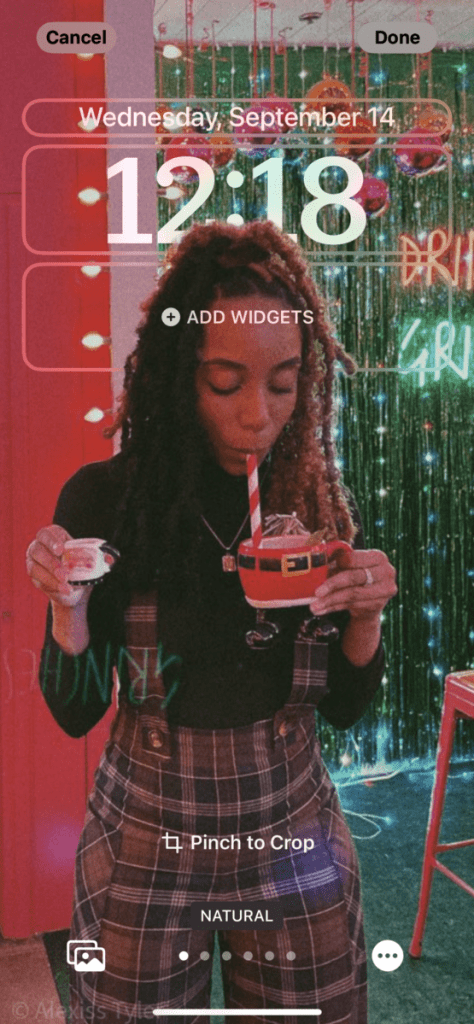
How To Use Depth Effect on iPhone Wallpaper

  1. Go to Settings
  2. Go to Wallpaper
  3. Click Add New Wallpaper
  4. Select photo and edit to your preference.
  5. Add widgets to your lock screen
  6. Be sure to hit the add button in the upper right corner to save
Not Your Average SEO Course By Sarah Chetrit: My Honest In-Depth Review

Aesthetically Pleasing iPhone Homepage #2: How To Use Widgets

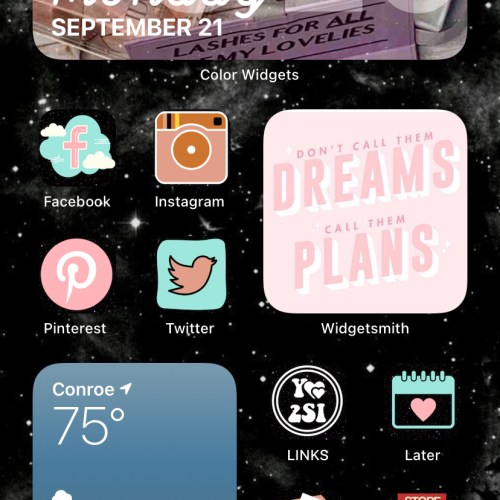
I used widgets to get these photos and the calendar on my homepage. I’m sure I’ll change them a bunch throughout the year but for now they’re perfect.
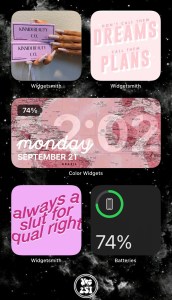
My iPhone Sept 2020

How To Add Photo Widgets

  1. Download the free app Widgetsmith
  2. Under the Widgets tab; select your desired widget size. I used the small widgets for my photos shown above.
  3. Under the Style tab; scroll until you see Custom.
  4. Select photo
  5. Under the selected photo tab you have the option to choose the photo you’d like displayed.
  6. Be sure to hit the save button in the upper right corner

How To Customize Calendar Widget

  1. Open the free Color Widgets app
  2. Select whichever widget catches your eye
  3. Select Edit Widget
  4. Under the customize tab you can select the widget size, background, theme, font, and background photo.
  5. Set Widget
  6. Use the ? button in the upper right corner for steps on how to add the widget to your home screen.

Check Out These Posts:

How to Start a Blog and Make Money in 2022

Learn more tips and tricks for iOS in this post below:

How to Create an Aesthetic iPhone Customization With iOS 14

HAVE A QUESTION ABOUT USING THE NEW FEATURES ON iOS 16.0?

Leave a comment below & I’ll update this post as the questions come in!
Post Views: 0

Share this:

  • Twitter
  • Facebook

About Alexiss Tyler

A benevolent virtual big sister who loves to provides authentic and detailed content to teach you.

You might also enjoy

THE BEST PROMO CODES FOR ONLINE SHOPPING - LIST OF DISCOUNT CODES
Turkey Leg Hut - 3 Reasons to Visit This Houston Restaurant
How to Create an Aesthetic iPhone Customization With iOS 14
Previous:
Shower Routine Steps & Products I Recommend

Leave a Reply Cancel reply

Your email address will not be published. Required fields are marked *

Hi, I'm Lex!

Hi Lovelies, I'm Lex of YL2SI! I am a Lifestyle content creator and cat mom. You Love 2 See It is a blog to provide you helpful tips and inspiration for all things beauty, lifestyle, blogging, and travel.

Let’s Connect

  • Email
  • Instagram
  • Pinterest
  • YouTube

Recent Comments

  • Tracy on Not Your Average SEO Course By Sarah Chetrit: My Honest In-Depth Review
  • Jasmine on My First Time Ordering Gymshark: Why is it so Popular?
  • Jessica on How to Create an Aesthetic iPhone Customization With iOS 14

Categories

Straight To Your Inbox

DISCLOSURE

DISCLOSURE
Design by SkyandStars.co
Back Top

Copyright © 2022 Don't Be Ashy