The iPhone iOS 16.0 update has finally been released. Apple’s 1OS.16.0 update is allowing even more creativity for its user. You can see a few example iPhone 16 depth wallpapers here. In this post you will tips and how to guides on using a few features from Apple’s iOS 16.0 update.
Disclaimer: Affiliate links are used and you can read my full disclosure here.
How to Use Depth Effect for iPhone Wallpaper
Table of Contents
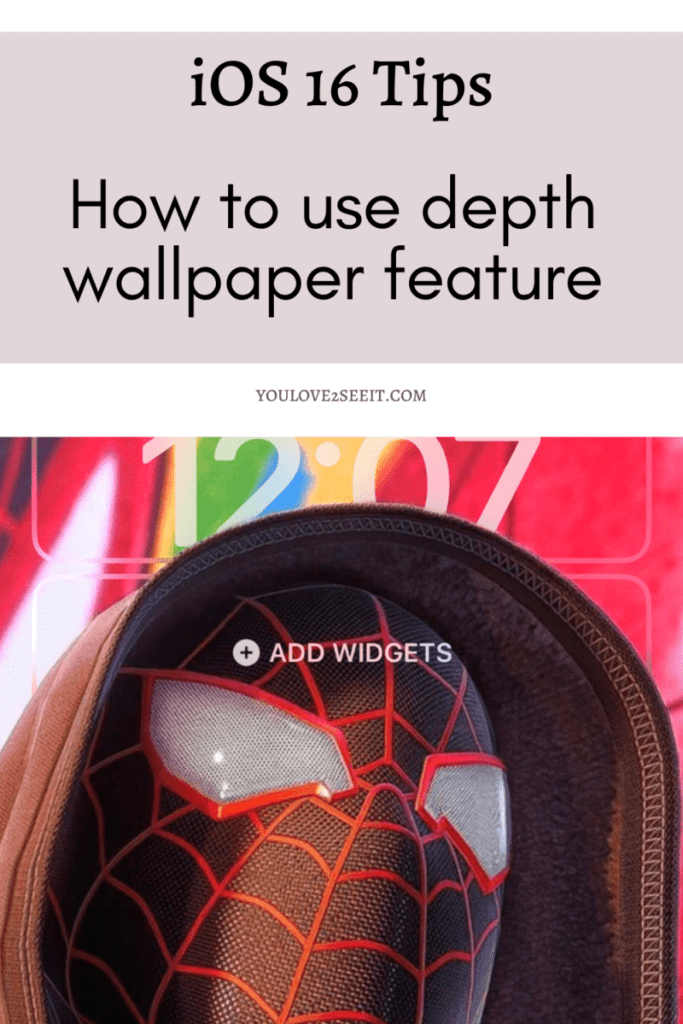
The new depth effect allows users to create a magazine style lockscreen. You can use this feature to cover a bit of the widgets or clock on your iPhone wallpaper.
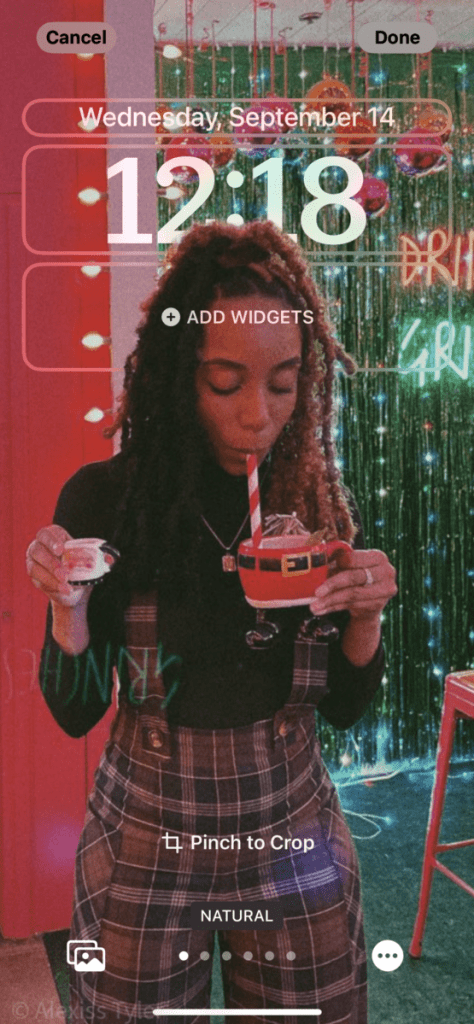
How To Use Depth Effect on iPhone Wallpaper
- Go to Settings
- Go to Wallpaper
- Click Add New Wallpaper
- Select photo and edit to your preference.
- Add widgets to your lock screen
- Be sure to hit the add button in the upper right corner to save
Aesthetically Pleasing iPhone Homepage #2: How To Use Widgets
I used widgets to get these photos and the calendar on my homepage. I’m sure I’ll change them a bunch throughout the year but for now they’re perfect.
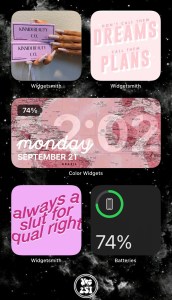
How To Add Photo Widgets
- Download the free app Widgetsmith
- Under the Widgets tab; select your desired widget size. I used the small widgets for my photos shown above.
- Under the Style tab; scroll until you see Custom.
- Select photo
- Under the selected photo tab you have the option to choose the photo you’d like displayed.
- Be sure to hit the save button in the upper right corner
How To Customize Calendar Widget
- Open the free Color Widgets app
- Select whichever widget catches your eye
- Select Edit Widget
- Under the customize tab you can select the widget size, background, theme, font, and background photo.
- Set Widget
- Use the ? button in the upper right corner for steps on how to add the widget to your home screen.
Check Out These Posts:
Learn more tips and tricks for iOS in this post below:
HAVE A QUESTION ABOUT USING THE NEW FEATURES ON iOS 16.0?
Leave a comment below & I’ll update this post as the questions come in!




Leave a Reply